

How to Hide Addresses, License Plates, and QR Codes in Photos
A parcel label can slip into the background, or a license plate can show up at the edge of a travel photo. Keep the original and make a separate copy to share.
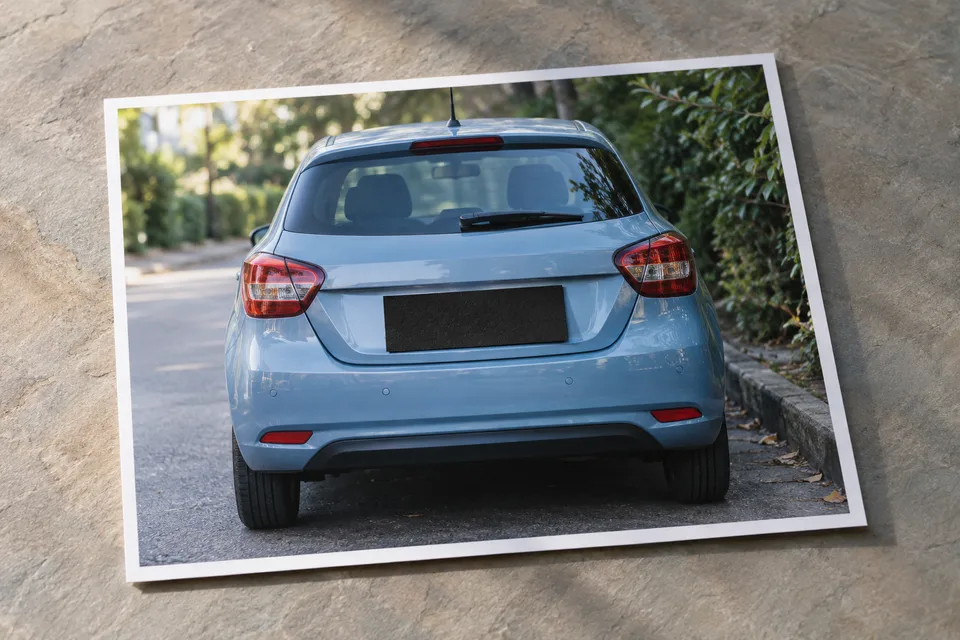
Look around the subject and in reflections
Think about who can see or forward the picture. Zoom in on shipping labels in the corners, vehicle plates, and QR codes on tickets or passes. Check whether a window or mirror shows the same details again.
Crop out the detail or cover it completely
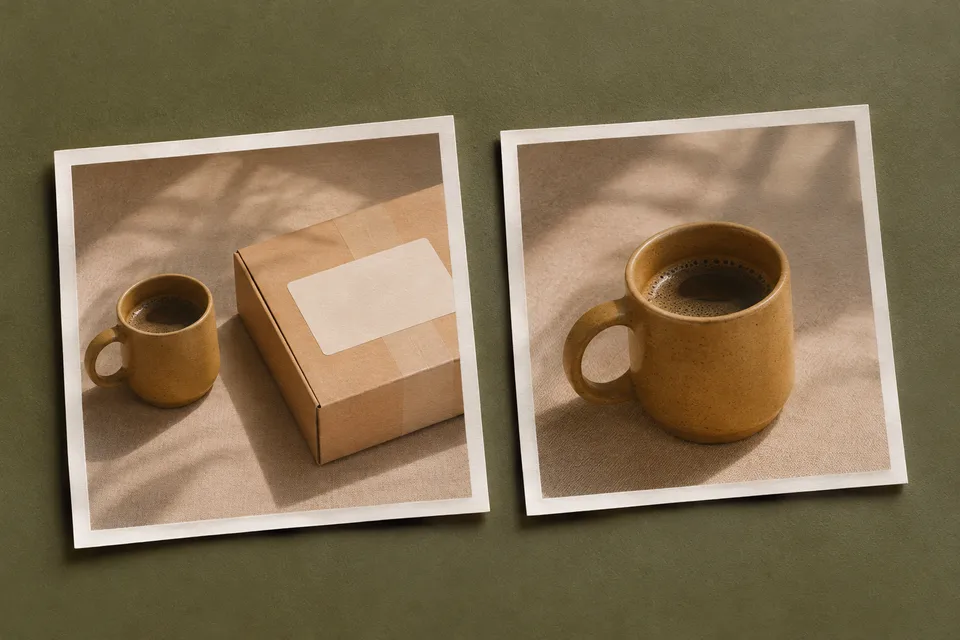
If the mug is the subject, crop out the whole parcel. If you need that part of the frame, use a solid, fully opaque shape that extends past the edges of the text or code.
A translucent marker or a light blur can leave details legible. A QR code may still be readable when partially covered, so crop it out or cover the whole code right to its edges. There’s no need to open it.
Export a new image and open that exact file
Export a new JPEG or PNG with the cover baked into the image. Leave the editable project in your own files and avoid sending an album link that includes the original.
Open the exported file from the place you saved it and zoom in to check the covered area and any reflections. Cropping or covering a visible detail can leave the photo’s stored location data intact. Check the file information separately.
Check the attachment and the recipients
In the share window, confirm you selected the new copy and the intended recipients. If you can’t verify a small covered area or the same detail appears across several photos, choose another picture or take a new one.